
AI Photo Generator: Muselab AI
Shotcut Video WorkshopPhotography
4.6583.00 Reviews
- Version
- 2.1.2
- Installs
- 5.00M
- Age Rating
- Everyone
Screenshots
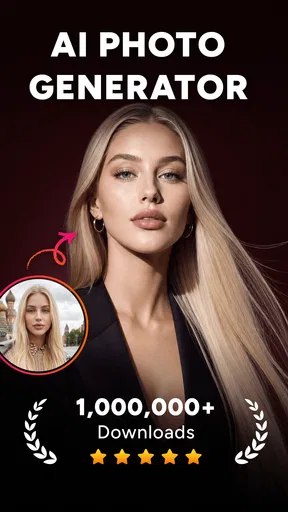
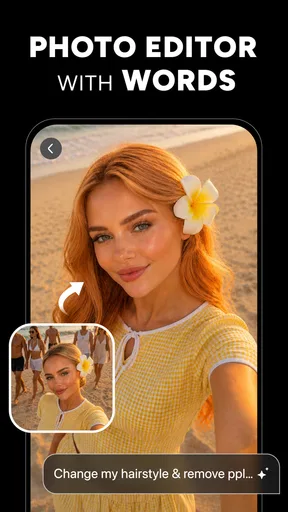
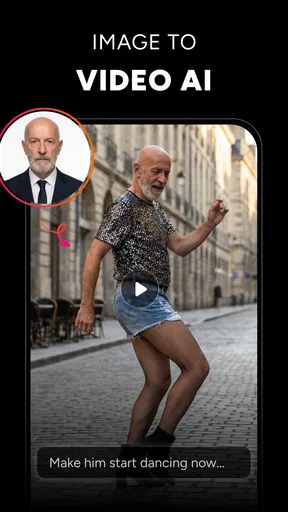
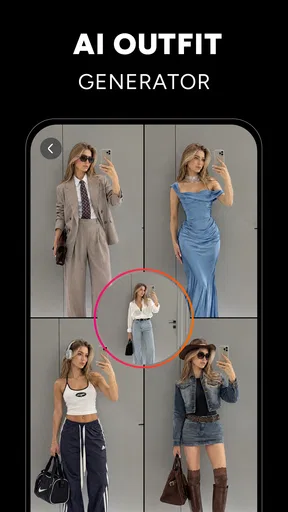
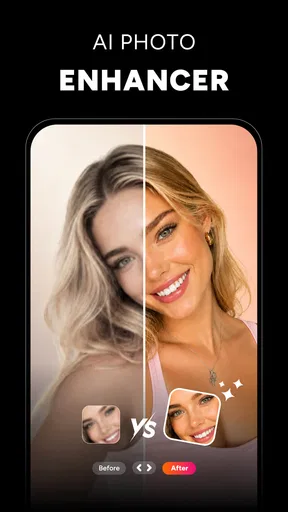
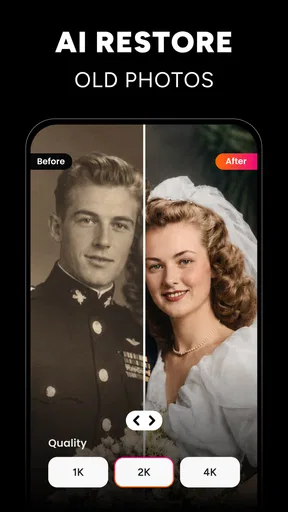
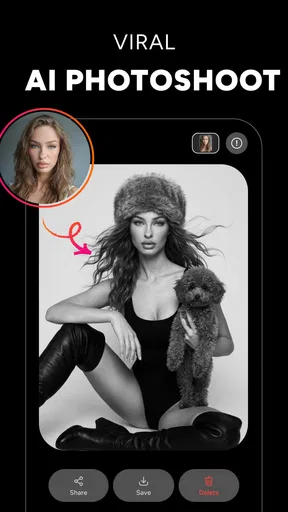
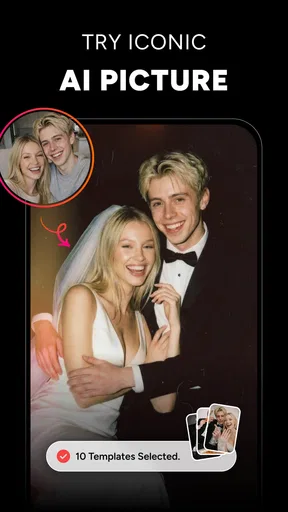
Our Review of AI Photo Generator: Muselab AI
 Analysis by Appyee
I approached Muselab AI as a working photography tool rather than a novelty generator. Its purpose is to help turn an idea into an AI-made image, apply an AI photo filter, and continue with basic photo editing in the same general creative flow. That combination makes it interesting for people who need a visual starting point quickly, especially when taking a new photograph is inconvenient.
The app comes from Shotcut Video Workshop and sits in the photography category. It is free to install, rated for Everyone, and runs on Android 8.0 or later. Its store summary focuses on realistic AI images, filters, and editing, while the shorter store label is simply “Muselab AI.” I found that positioning useful because it sets the right expectation: this is better understood as an idea-to-image workspace than as a replacement for a full professional camera or desktop editor.
Muselab AI has reached over 100K installs and holds a 4.5 average from around 2.4K ratings. Those figures suggest that the app has found a real audience, but they do not remove the need to judge its workflow carefully. AI image tools can look impressive in a single preview and still become frustrating when you need a consistent result, a clean handoff, or precise control.
Starting with an idea instead of a finished photograph
The most useful way to begin with this app is to treat the first generated image as a draft. I would not open it expecting the same direct control I get from a conventional camera app, where I choose exposure, focus, lens behavior, and composition before pressing the shutter. The appeal here is different: I can start with a visual brief and explore a direction before I have a finished photograph.
That makes the app suitable for early creative work. For example, if I am planning a social post for a weekend event, I might need a warm travel-style image, a portrait concept, or a background that supports a short announcement. Creating an initial visual can help me decide on color, mood, and framing before I spend time arranging a real shoot. I see this as a practical use, not just entertainment.
The quality of the brief matters. A vague request such as “make a beautiful picture” leaves too many decisions open. I get more useful results when I describe the subject, setting, lighting mood, viewpoint, and intended feeling. I also separate the essential elements from optional decoration. That approach makes later revisions easier because I know which part of the result needs changing.
A helpful habit is to write the brief as if I were explaining a shot to another person. I might specify a quiet café interior, a subject near a window, a natural color palette, and space on one side for text. The last detail is especially important for publishing. An image can look attractive on its own but become unusable once a headline or logo has to sit on top of it.
There is also a trade-off between realism and imagination. Muselab AI is presented as a realistic AI image generator, so it makes sense to use it for believable scenes, visual references, and polished concepts. If I want a highly controlled brand image with exact products, repeated characters, or precise typography inside the artwork, I would be more cautious. AI-generated visuals often need inspection before they are ready for public use, particularly when small details carry meaning.
Where the creative starting point works best
I think the strongest starting point is a task where speed and visual exploration matter more than exact reproduction. A small business owner could use the app to test several moods for a campaign. A student could create a visual reference for a presentation. A photographer could use it to sketch a composition before arranging props. Someone preparing a personal invitation could explore a background style before finishing the design elsewhere.
The app is less convincing as the only tool for documentary photography. If the goal is to record a real person, place, or event faithfully, a camera and a conventional editor remain the better choice. Muselab AI can help with a concept around that subject, but it should not be confused with an evidence-preserving camera workflow.
One non-obvious advantage is that generated imagery can expose weak ideas early. If a concept repeatedly produces cluttered or awkward compositions, that may indicate that the brief itself is overloaded. I use the first result as feedback on the idea, not only as a picture to keep. This makes the app more valuable during planning than its short store description might suggest.
Building the image and shaping the result
Once I have a direction, the making process becomes a balance between the generated image and the editing stage. The app combines AI image creation with photo filters and editing, so I can think in two passes. First, I decide what the scene should contain. Then, I decide how the finished picture should feel. Keeping those jobs separate prevents me from trying to solve composition, atmosphere, and polish all at once.
For the generation stage, I prefer short, structured instructions over a long paragraph filled with conflicting adjectives. I identify the main subject first, then the environment, then the visual treatment. If the image needs room for a caption, I say where that room should be. This is not a guarantee of a perfect result, but it gives me a clearer basis for comparison when I try another version.
The realistic style can be useful for mockups, mood boards, and social content, yet realism also makes defects more noticeable. I inspect faces, hands, reflections, signs, repeated objects, and edges before considering an image finished. These checks are easy to skip when the overall composition looks attractive. They are also the difference between a private draft and something I would confidently publish.
The editing side is where the app becomes more practical than a generator that stops after producing an image. An AI filter can quickly shift the atmosphere, while ordinary adjustments can help bring the picture closer to the intended use. I would make broad changes first, such as overall mood or color balance, and only then judge whether the image still feels natural.
I avoid stacking dramatic treatments too early. A strong filter may hide a problem in the source for a moment, but it can also make skin, shadows, or fine edges look artificial. My preferred workflow is to save the cleanest-looking version of the image as a reference, then compare filtered variations against it. This gives me a fallback if the stylized version becomes excessive.
A practical workflow for everyday publishing
Imagine I need a square visual for a local café’s morning post. I would begin with a clear brief: a bright table near a window, a warm drink as the main subject, a calm background, and open space for the post text. After generating a few directions, I would select the composition with the most useful empty area rather than simply choosing the most dramatic image.
Next, I would apply a restrained filter and inspect the cup, tabletop, highlights, and background edges. If the image is being used as a background, I would prioritize legibility for the text over tiny decorative details. I would then finish the wording and layout in a dedicated design or publishing tool if the final post requires exact typography. Muselab AI can provide the visual foundation, but a specialized layout tool is usually better for precise text placement.
This division of labor is one of the app’s important strengths. It lets me move from a blank page to a usable visual without pretending that one mobile application must handle every production task. The app is most effective when I use it for the part it is suited to: creating and shaping imagery.
Another useful technique is to keep a small set of preferred visual directions rather than changing everything at once. If I alter the subject, setting, lighting, and filter in every attempt, I cannot tell which change improved the result. Changing one major variable at a time makes the process slower in the moment but faster overall because each result teaches me something.
Iteration is where the real value appears
The first output is rarely the end of the process. I judge Muselab AI by how useful it is when I need to refine an idea, not by whether one preview happens to look good. Iteration is especially important with AI imagery because a small change in wording can alter the entire composition instead of making one neat correction.
I recommend keeping the central idea stable while testing one adjustment at a time. If the subject is right but the background is distracting, I focus the next attempt on the background. If the lighting feels too artificial, I change the lighting language rather than rewriting the whole brief. This makes comparison possible and reduces the feeling that I am starting from zero each time.
A less obvious trade-off is consistency. For a single image, variation can be helpful because it gives me options. For a series of images, variation can become a problem. If I am preparing several posts for the same project, I need to watch whether the subject, colors, and overall visual language remain compatible. An AI generator may produce appealing individual images that do not look like part of one coherent set.
For that reason, I would choose one strong reference direction early and use it to guide later work. I would keep notes about the visual choices that matter: the level of realism, the dominant colors, the camera-like viewpoint, and the amount of empty space. Even without a formal brand system inside the app, those notes help me make better decisions from one image to the next.
Iteration also means knowing when to stop. There is a temptation to keep generating because every new version might be slightly better. I stop when the image meets its actual purpose: the subject is clear, the composition supports the intended message, and the details survive a close inspection. Endless polishing is not useful if the image is only a temporary concept.
Limitations I would keep in mind
The first limitation is control. A traditional photo editor gives me predictable tools for cropping, retouching, masking, and correcting specific areas. An AI-centered workflow can be faster for broad creative changes, but it may be less dependable when I need one exact object moved, one facial detail preserved, or one product represented faithfully.
The second limitation is review time. AI can reduce the effort required to create an image, but it does not eliminate the need to check the image. In some cases, generation is quick while quality control takes longer than expected. That matters for professional work, where an unnoticed visual error can damage trust.
The third limitation is the boundary between creation and delivery. Muselab AI can help me reach a polished visual, but publishing often involves dimensions, typography, file organization, captions, and platform-specific preparation. I would not build a complete delivery pipeline around this app alone. I would use it as the image-making stage and hand the result to the tool that matches the final channel.
There is also a cost consideration. The app is free, but in-app purchases range from $4.99 to $49.99 per item. That means I would explore the free experience first and decide whether the paid options genuinely save time for my workflow. Occasional users may be satisfied without spending, while frequent creators should consider how often they generate images and whether the paid path fits their budget.
The app’s current version is 1.5.2, which gives me a clear version reference when checking whether my experience matches a newer installation. I would also make sure the phone meets the Android requirement before planning a project around it. Since the age rating is Everyone, it is broadly approachable, although that does not change the need for adults to review generated material before using it in public or commercial settings.
Exporting the idea into a finished project
The handoff stage deserves more attention than it usually receives in an AI image review. A picture is not finished merely because it looks attractive in the app. I ask whether it has the right composition for its destination, whether important details remain clean, and whether another person can use it without guessing which version is final.
Before handing an image to a client, teammate, or publishing tool, I would create a simple naming habit. I might identify the project, visual direction, and revision status in the filename or surrounding notes. This is particularly useful when several AI variations look similar. Without that discipline, it is easy to publish an earlier draft or send a version with an unwanted filter.
I would also inspect the image at the size where people will actually see it. A detail that looks acceptable on a phone preview may become distracting when the image is used as a large post or presentation visual. Conversely, a subtle flaw may disappear in a small thumbnail. Checking the real destination helps me decide whether another iteration is worth the time.
For social publishing, I would leave final text and layout to a tool with stronger design controls when precision matters. For a mood board or private reference, the in-app result may be enough. For a client-facing campaign, I would treat the generated image as an asset that still needs a final human pass. This is not a criticism unique to Muselab AI; it is the sensible way to handle AI-created visuals.
One practical strength is the shorter path from blank concept to shareable draft. A conventional workflow might require searching stock libraries, downloading several candidates, cropping them, and applying a look. Here, I can begin from the idea itself. The trade-off is that stock photography or a real camera may deliver more predictable subject accuracy and provenance when those qualities matter more than speed.
If I need a real photograph edited carefully, I would choose a traditional mobile editor. If I need a design with exact text, grids, and reusable layouts, I would choose a dedicated design application. If I need an imaginative or realistic visual starting point without arranging a shoot, this app becomes the more appealing option. The best choice depends on whether my main problem is finding an image, controlling an image, or delivering a layout.
My verdict for different kinds of creators
After using the app as a creative workflow, I see Muselab AI as a convenient bridge between an idea and a finished visual draft. It is particularly well suited to people who want to explore realistic image concepts on a phone, experiment with atmosphere, or prepare a visual base for later publishing. Its combination of generation, filtering, and editing means I do not have to leave the initial creative stage immediately after producing an image.
I would recommend it to social creators who need fresh visual directions, small businesses that cannot arrange a photo session for every post, students building visual presentations, and photographers who want to test compositions before shooting. It can also help someone who has a clear mood in mind but lacks the time, equipment, or location to create that scene conventionally.
I would ask professional product photographers, documentary users, and designers who need exact typography or strict brand consistency to look elsewhere for the final stage. They may still find value in Muselab AI for brainstorming, but a camera, stock library, retouching application, or layout tool will usually provide more dependable control for delivery.
My strongest advice is to judge every result against its purpose, not against the excitement of seeing an AI image appear. Write a focused brief, generate with a clear composition in mind, change one major element during revisions, inspect small details, and use a dedicated tool when the final handoff requires exact layout or dependable product accuracy. That workflow turns the app from a one-tap experiment into something genuinely useful.
My final view: Muselab AI is worth trying if your creative bottleneck is the first visual idea. The free entry makes experimentation easy, and the mix of realistic generation, filters, and editing gives it more practical range than a generator that only produces a single image. I would keep my expectations measured around precision and consistency, and I would treat paid purchases as a decision based on repeated use rather than impulse. Used as the starting and shaping stage of a broader creative process, it is a capable mobile companion for turning a rough thought into a picture I can actually develop.
Privacy and Permissions
See what permissions an app requests and how it handles your data.
- Photos/Media/Files
- read the contents of your USB storage, modify or delete the contents of your USB storage
- Storage
- read the contents of your USB storage, modify or delete the contents of your USB storage
- Camera
- take pictures and videos
- Wi-Fi connection information
- view Wi-Fi connections
- Other
- view network connections, full network access, control vibration, prevent device from sleeping, Google Play license check
Verdict
Strengths of AI Photo Generator: Muselab AI
- Creates varied AI images from simple text prompts.
- Offers creative styles for portraits, art, and social content.
- Fast generation makes experimenting with ideas convenient.
- Useful for users without advanced photo-editing skills.
- Can inspire new concepts when you are stuck creatively.
Limitations of AI Photo Generator: Muselab AI
- Results may include distorted hands, faces, or small details.
- The best tools or styles may require a paid subscription.
- Generated images can differ noticeably from the prompt.
- Privacy terms should be checked before uploading personal photos.
- High-quality generations may use credits or take longer to process.
Other Releases by Shotcut Video Workshop
View All
Video Downloader, Download All
Video Players & Editors4.5

AI Video Editor: ShotCut AI
Video Players & Editors4.2

AI Video Generator: Collart AI
Photography4.6
Similar Picks in This Category
View All
Google Photos
Google LLC4.4

Gallery
Google LLC4.2

Picsart AI Photo Editor, Video
PicsArt, Inc.3.9

B612 AI Photo&Video Editor
SNOW Corporation4.1

BeautyPlus-Selfie Photo Editor
PIXOCIAL TECHNOLOGY (SINGAPORE) PTE. LTD.4.5

Remini - AI Photo Enhancer
Bending Spoons4.1
Frequently Asked Questions
What is AI Photo Generator: Muselab AI used for?
AI Photo Generator: Muselab AI is designed to create and transform images with artificial intelligence. You can use it to generate portraits, stylized photos, avatars, and creative visual concepts from prompts or uploaded pictures, depending on the tools available in the current version. It is aimed at casual users and creators who want quick results without advanced photo-editing skills.
Is AI Photo Generator: Muselab AI free to download and use?
The app may be free to download, but some features, styles, generations, or higher-quality exports can require in-app purchases or a subscription. Free access may also include limits such as daily credits, advertisements, watermarks, or slower processing. Before starting a trial or subscription, check the pricing page carefully, including renewal terms and whether unused credits expire.
Do I need to upload a photo to use Muselab AI?
Not necessarily. AI Photo Generator: Muselab AI may support both text-based creation and photo-based transformations, although the exact options can vary by device, region, and app version. If you upload a personal image, use a clear photo with suitable lighting for better results, and avoid submitting pictures of other people unless you have their permission.
Are the images created by Muselab AI private and safe?
Privacy depends on how the app processes uploaded photos and prompts. Images may be sent to remote servers for AI generation, so review the app’s privacy policy before using sensitive, confidential, or identifying material. Check how long content is stored, whether it is used to improve services, and which permissions are requested. Avoid uploading documents or private images unnecessarily.
Can I use Muselab AI images commercially?
Commercial usage rights depend on the app’s current terms, the type of subscription you have, and whether the generated image includes recognizable people, trademarks, or copyrighted styles. An AI-generated result may still create legal or platform-related issues. If you plan to use an image for advertising, products, or business content, read the license carefully and verify ownership and permitted uses first.
